
Moonlit Chase
Story Music Video
The trial image model follows the appearance description, so identity consistency may vary.
0/500
Aspect ratio
Video 50 + References 2×2 · Upload your own references to pay video credits only
AI Music Video
Want visuals that follow the beat, or have photos to work with? The music visualizer reacts to the audio itself, and the photo video turns your stills into motion cut to the song.
Inspiration
Explore a few visual directions, then create a music story of your own.
Story Music Video
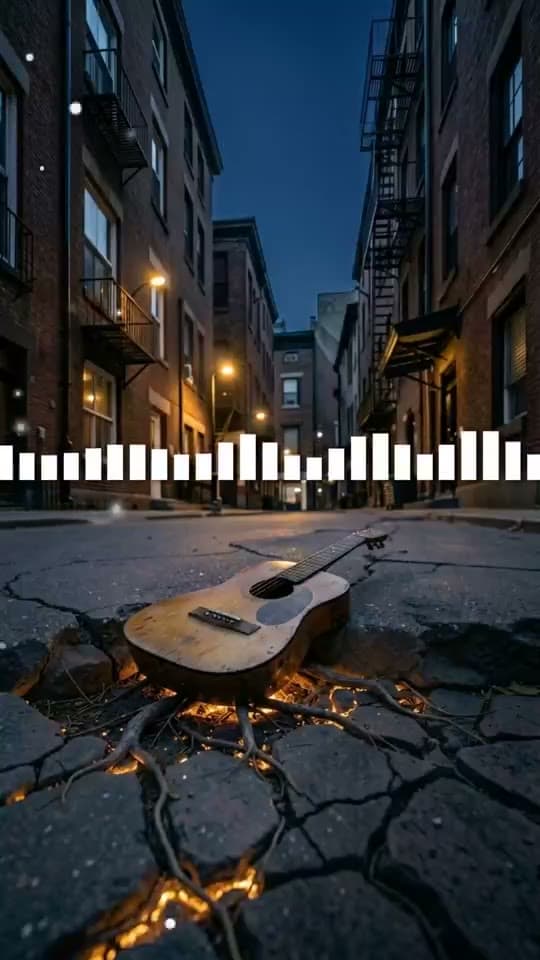
Music Visualizer
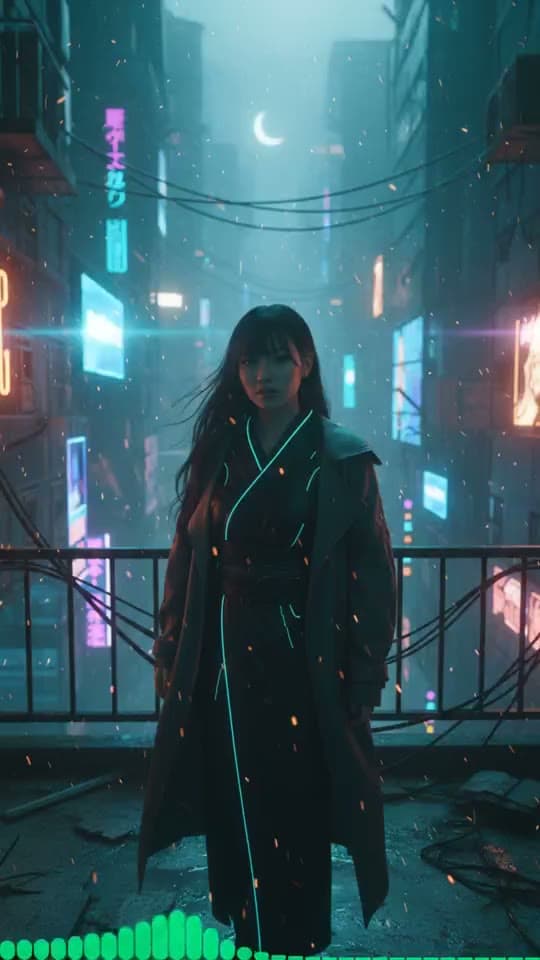
Moving AI Images
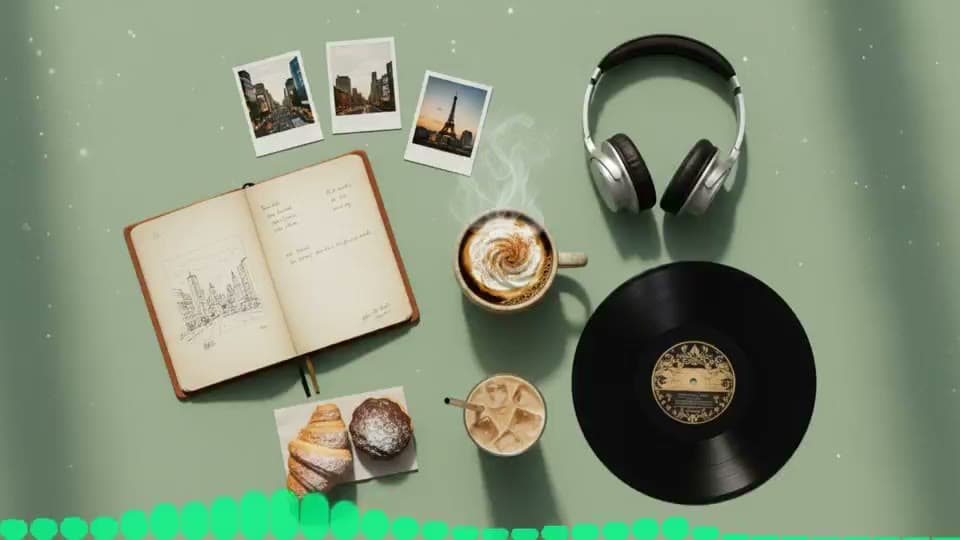
Moving AI Images
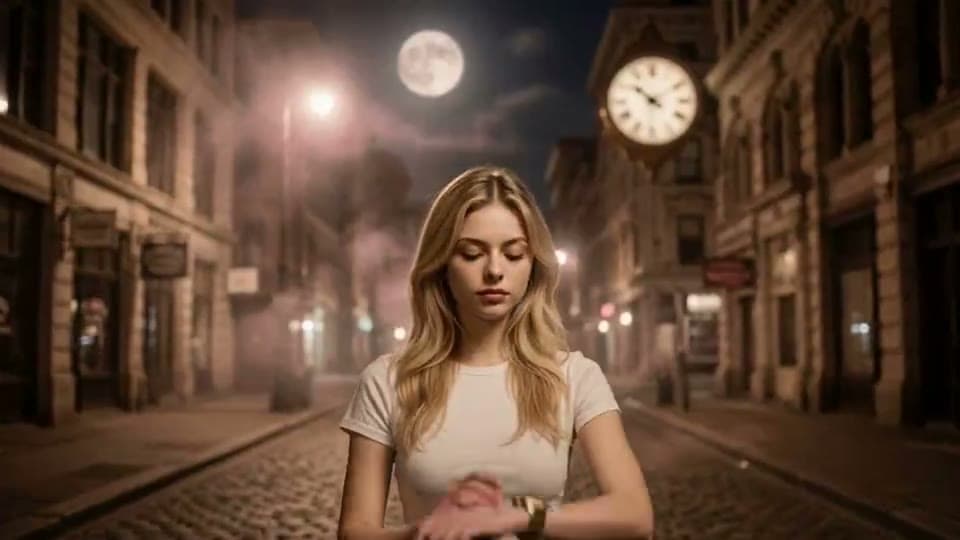
Story Music Video
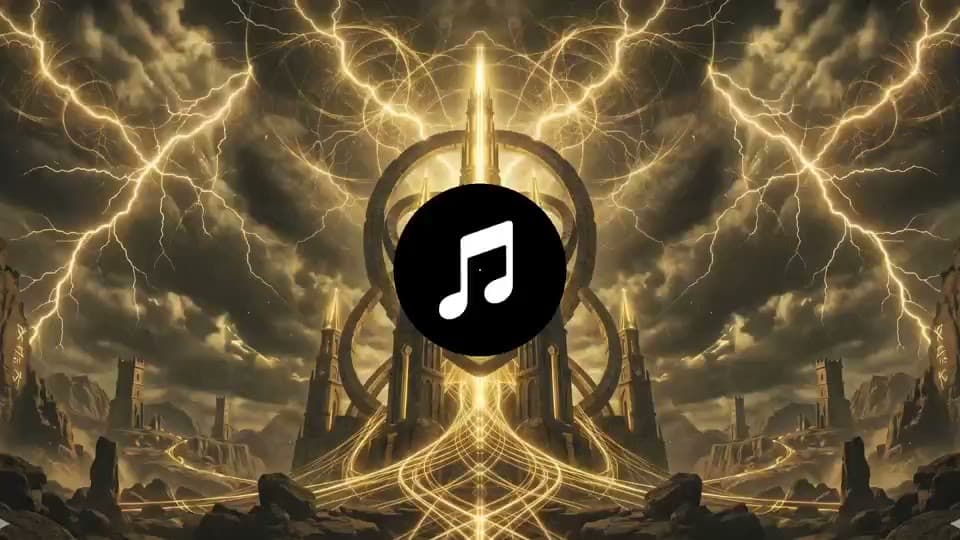
Music Visualizer
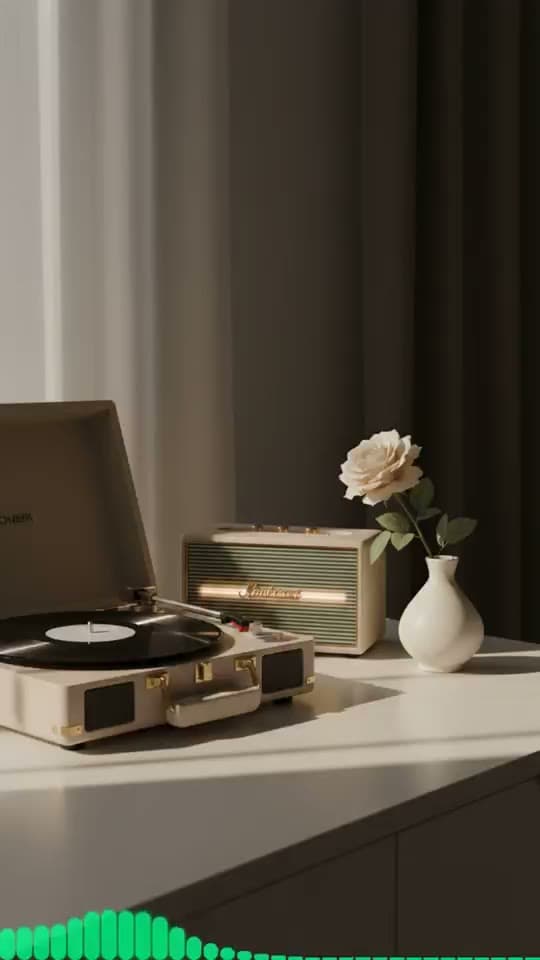
Moving AI Images
Moving AI Images

Story Music Video
Music Visualizer
Moving AI Images
Moving AI Images

Story Music Video
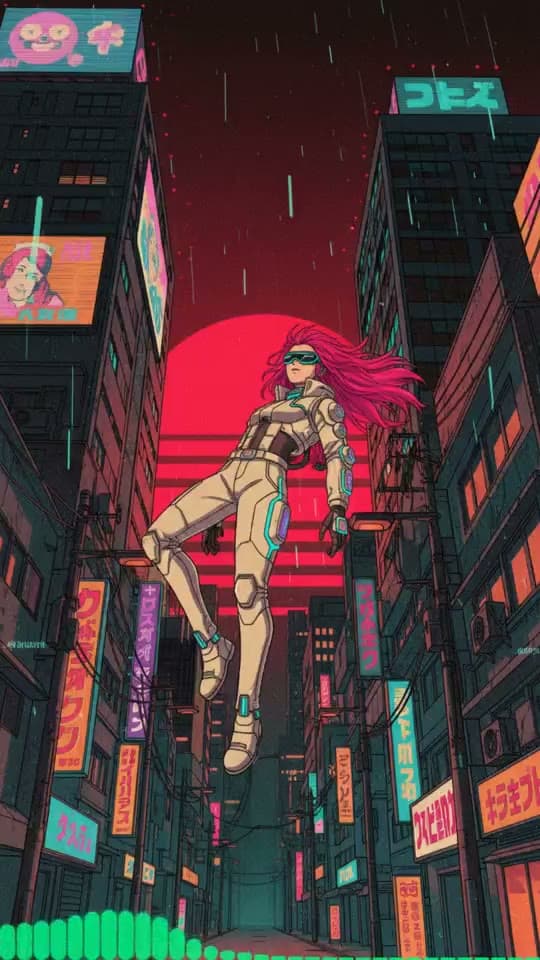
Moving AI Images
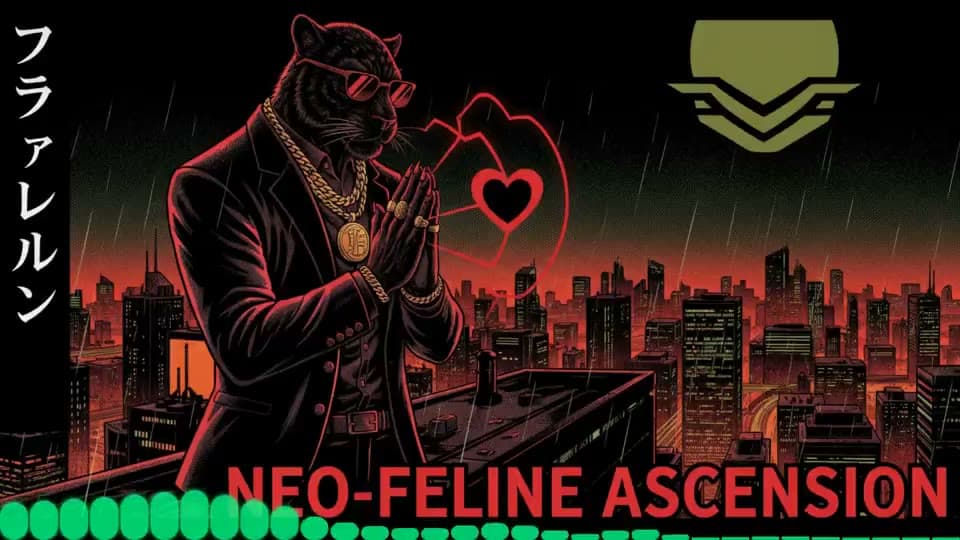
Moving AI Images
Create story scenes for a selected music clip.
01
Build the video around a section that carries the feeling you want viewers to remember. When choosing among possible passages, look for a clear opening, development, or emotional turn. A verse may establish a character or place; a chorus can give the central moment more room; an instrumental break can leave space for visual action. These are planning ideas, not timing rules.
You can select local audio or music from your account workspace. Before continuing, listen to the chosen excerpt and decide what a viewer should understand from it. A concise description of that intent gives the visual plan a useful starting point. Keep the excerpt focused: one recognizable mood or change is easier to express as a short sequence than several unrelated ideas.
02
Use the storyboard to turn the premise into a sequence of shots. Each shot description can state what is visible, what changes, and how the next moment follows. For example, a character could notice a distant light, move toward it, and reach a new setting. That progression gives the sequence a beginning, middle, and end without requiring a complicated plot.
Review the shot descriptions before video generation. If two shots do the same job, combine their ideas; if a transition feels abrupt, clarify what changes between them. Keep each description centered on one visible action or scene. The storyboard can be generated and edited first, which lets you refine the planned sequence before moving on to video generation.
03
Choose up to two preset or reusable custom characters when a person should carry the story across scenes. A preset is a straightforward starting point; a reusable custom character can help represent a recurring figure you have already defined. Consider whether the story needs one central person, two people in relation to each other, or no character at all. Leaving a scene focused on a place or object can be a deliberate choice.
Character appearance consistency is not guaranteed. Treat a character choice as visual direction rather than a promise that every shot will match perfectly. If continuity matters to the story, keep the action simple enough that viewers can follow it even when an appearance varies. Choose characters whose role is clear from the storyboard, instead of adding people only to fill a scene.
04
Scene references can help establish the kind of place or visual subject you have in mind. Upload a reference image or generate references with an image model, then use the images to communicate scene direction. A reference can suggest a location, atmosphere, or broad visual idea; it does not guarantee an exact reproduction in the completed video.
Choose images that clarify the scene rather than compete with one another. If a shot is meant to feel quiet and isolated, a reference with a crowded, energetic setting may pull in another direction. Generated references use credits, so decide whether an image is useful before creating one. A written scene description can remain the main guide when an image would add little.
05
Choose a video option with the intended resolution and aspect ratio in mind. Seedance 1.5 Pro is available at 480p or 720p; Veo 3.1 Lite and Veo 3.1 Fast are available at 720p. Veo supports 16:9 and 9:16, while Seedance also supports 1:1. These choices affect the shape and output setting of the video, so decide where the finished frame should place its emphasis.
A wide frame can suit a scene organized across a landscape, while a vertical frame gives more room to a person or subject arranged from top to bottom. Square output is another option with Seedance. Think about the composition of the storyboard when selecting the format: a subject near the edge may be harder to frame in a different shape. The available options vary by model, so choose from the listed combinations.
06
Video generation requires sign-in, eligible paid access, and sufficient credits. Once a video is complete, preview it and decide whether it communicates the intended story before downloading the MP4. Completed videos are available in private account history, which provides a place to return to your results.
Use the preview to check whether the sequence reads clearly and whether its framing suits the intended story. Note the parts that feel clear or confusing so you can evaluate the completed MP4 on its own terms.
07
No. This workflow creates story scenes for the selected music clip. It does not provide automatic lip sync or guarantee beat synchronization, so plan for a visual story rather than a singer whose mouth movements match the audio.